
Setup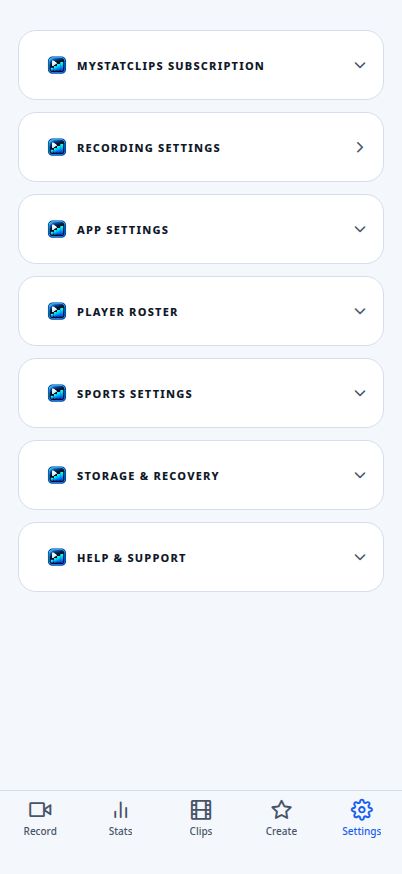
Current app web preview · Settings
Set up your athlete or team
In Settings, add your athlete in Player Roster. Basketball teams are set up in Sports Settings.
A short path from setup to saved highlights. Follow along once, then keep your eyes on the game.
In Settings, add your athlete in Player Roster. Basketball teams are set up in Sports Settings.
Open Record and choose the sport you’re filming.
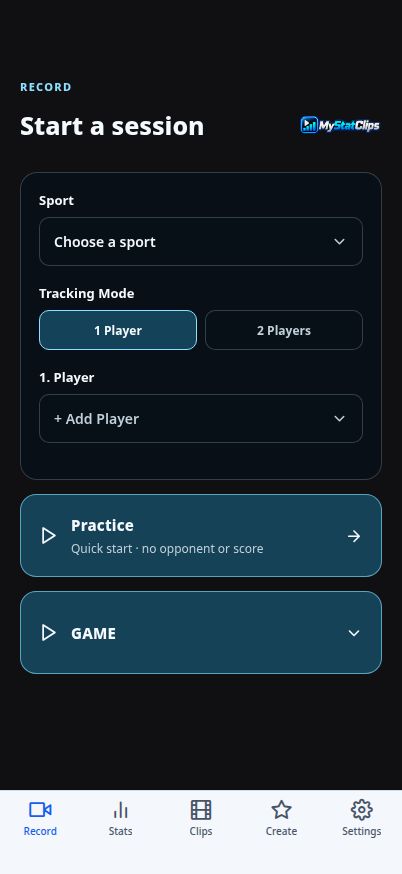
Choose 1 Player, 2 Players, or Basketball Team where available. Team tracking requires Premium.
Use Game for a matchup or Practice for a workout. Complete the setup shown on screen.
Check the camera view, then tap START. Keep MyStatClips open while recording.
Tap the matching stat button. With two players or a team, select the athlete first.
Tap CLIP for a highlight without adding a stat.
Tap PAUSE for a break and RESUME when you’re ready to continue.
Confirm End Game and let saving finish. Don’t close the app while it saves.
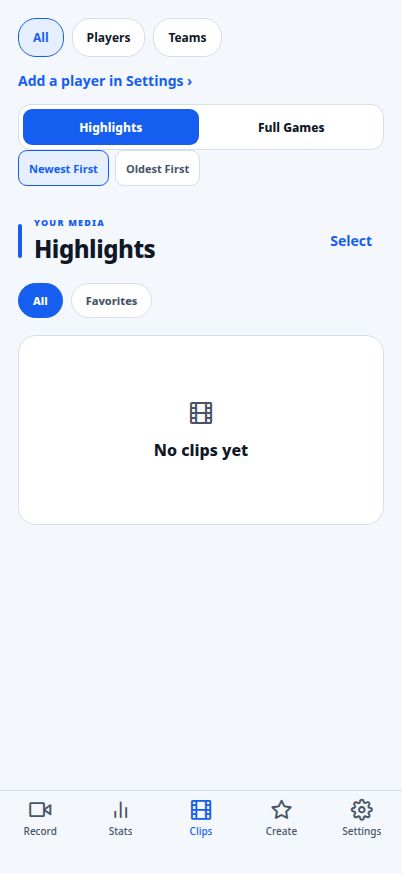
Open Clips → Highlights. Watch, trim, favorite, save, or share the moments you kept.
Explore controls, clips, recovery, sharing, and answers to common questions.
View Complete User Guide